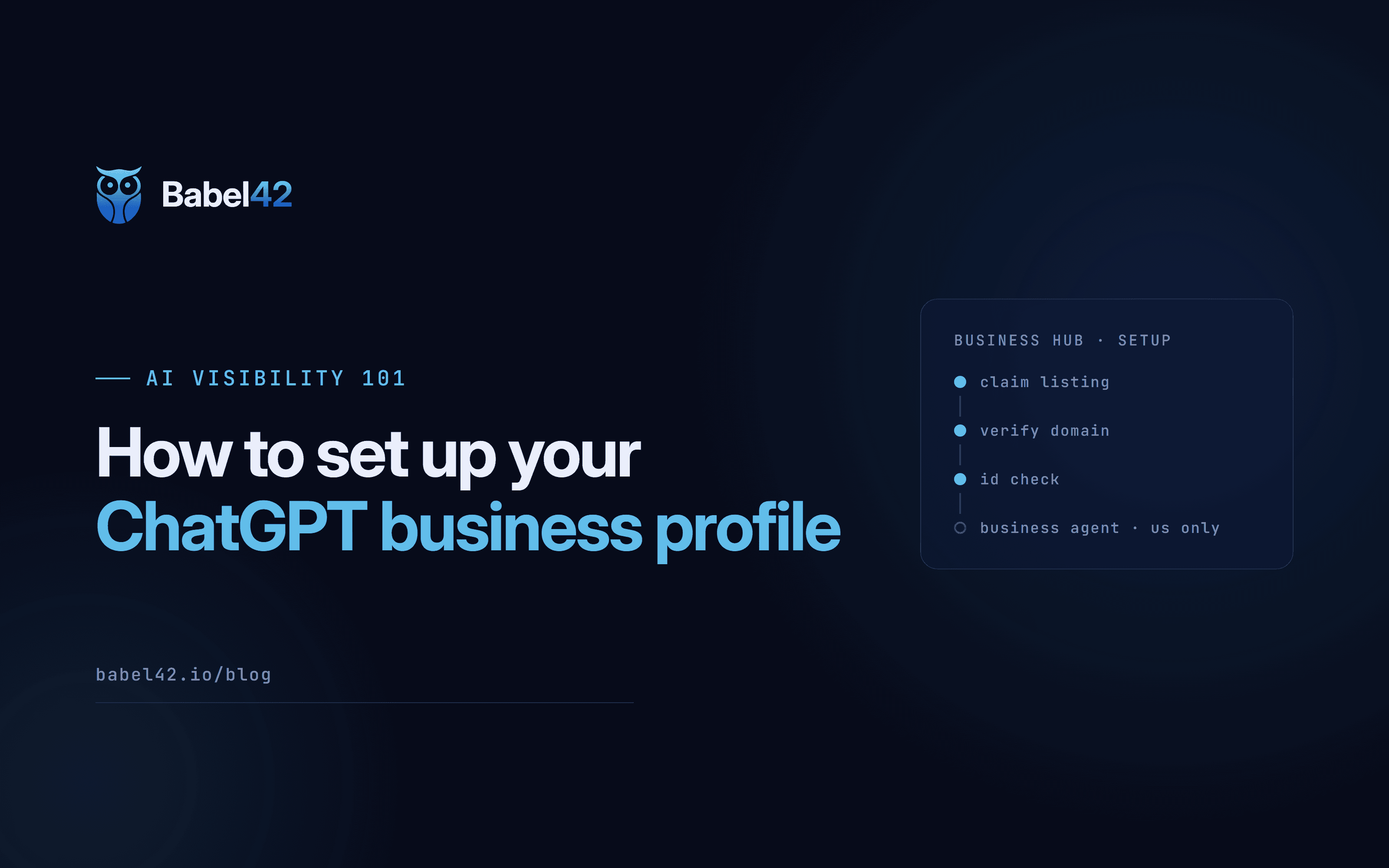
On 10 November 2026 OpenAI opened Business Hub, a free beta that lets a business claim its profile in ChatGPT, edit its details and see how often ChatGPT mentions it. We claimed Babel42's profile from the UK. This guide covers each step, the ID check, what you see once you are in, and the parts that only work in the US for now.
What is ChatGPT Business Hub?
Business Hub is where a business manages how it appears in ChatGPT. Once your claim is approved you can edit your profile, see a few basic numbers about how ChatGPT mentions you, and, in the US, set up a Business Agent that answers customer questions. You find it at chatgpt.com/business-hub. Claiming is free.
OpenAI says plainly that claiming a profile does not promise more mentions, better placement or more sales. It gives you control over your details and some numbers. It does not change how ChatGPT decides which brands to recommend.
Who can claim a business in ChatGPT?
Any eligible business in a country where ChatGPT is available can claim, but the rules depend on the type of business.
| Business type | Can claim now? |
|---|---|
| Online business with a website (US) | Yes |
| Online business with a website (UK and elsewhere) | Yes |
| Local shop or restaurant (US) | Only an existing listing |
| Local shop or restaurant (outside the US) | Not yet |
| Business Agents | OpenAI says US online stores and online services first |
You need a website. If your business does not appear when you search, Business Hub may offer to create it (for online businesses) or put you on a waiting list.
How do you claim your business in ChatGPT?
The claim takes about 20 minutes of hands-on work, spread over a few sittings while you wait for checks.
- Sign in with the right account. Use the ChatGPT account that should own the business. That account becomes the admin.
- Open Business Hub. Go to chatgpt.com/business-hub and search for your business name.
- Pick your listing or create one. Check the address and website match. If you see "Contact support", the listing is locked and you need to contact OpenAI. If someone else has already claimed it, you can dispute the claim.
- Verify you own the business. You get one or more of these options:
- a code sent to your business email
- a code sent to your business phone
- a TXT record added to your website's DNS settings
- connecting your Shopify store
- Wait for OpenAI's decision by email. OpenAI does not publish how long this takes. You can cancel a pending claim.
We used the DNS method. OpenAI gives you a line of text, and you add it as a TXT record wherever your domain's DNS is managed. That is usually your domain registrar, not your website host. Adding a TXT record does not affect your website or email. The change can take from a few minutes to a few hours to show.
How does the ChatGPT ID check work?
After the claim is accepted, you complete an identity check with Persona, a third-party ID company OpenAI uses. You may be asked for:
- a government-issued photo ID, such as a passport or driving licence
- your business registration details, such as your company number, which should match official records
- sometimes, proof that you are allowed to act for the business
Until you pass, your profile sits in Draft. The banner on the dashboard puts it simply: the ID check "is required before editing business info or publishing your business agent."
One warning: a profile created through this process publishes automatically when it is approved, and it cannot be deleted afterwards. Check every detail before you submit.
What do you see in Business Hub?
Once your claim is accepted, Business Hub opens a page for your business with three sections in the side menu: Overview, Agent builder and Products. Before the ID check, Agent builder only shows the message "Verification is required to set up an agent that answers questions about your business in ChatGPT", and Edit business info asks you to verify first. The Products page explains that your products can appear in ChatGPT's answers when they match what people are looking for, and in your business side panel.
The Overview page showed:
- The business name and website, with a "Draft" label until the ID check is done, and an Edit business info button.
- The ID check banner, with a Verify button.
- Get started cards: "Get ready to chat with customers" (review your Business Agent before publishing it), "Upload your product catalog" (add products from a file), and "Upgrade to a ChatGPT Business plan". The upgrade is a paid ChatGPT team plan and you do not need it for your profile.
- Two Insights tabs: Brand insights and Agent insights, each with a 7-day or 28-day view.
Your profile. Once your ID is approved you can edit your description, category, contact details, logo and photos. OpenAI reviews changes before they go live, so edits do not appear straight away.
The category list is short. When we claimed Babel42, a software company, the only marketing option was "Marketing agency". If none of the categories fit, pick the closest honest one rather than one that brings the wrong customers.
Brand insights. This shows two numbers:
- Mentions: how often ChatGPT mentions your business
- Website clicks: clicks from ChatGPT to your site
Below them is a Mentions chart over time. On a new profile both numbers show a dash. Numbers only appear once enough people have seen you to meet OpenAI's privacy limits, so a dash can mean low activity or data that is not ready yet. It does not always mean zero.
What does Business Hub not show you?
Business Hub is closer to a basic business listing than to Google Search Console. It does not show:
- the questions people asked when ChatGPT mentioned you
- which competitors ChatGPT recommended instead of you
- the websites ChatGPT used as sources when it described you
- how you appear in other AI assistants, such as Gemini, Claude or Perplexity
To see those, you need to test the questions your buyers ask yourself, across several assistants. That is what AI search visibility tracking measures, and it is what our AI Buyers product does.
What is a ChatGPT Business Agent?
A Business Agent is a ChatGPT assistant for your business. It answers people's questions about what you sell, your delivery and returns, and similar topics, then links them to your website. You set it up inside Business Hub:
- Write its Instructions, which tell it how to behave.
- Add your Business context, the facts it should use, such as delivery and return terms.
- Connect a product feed if you sell products. Connecting Shopify can create a draft agent for you.
- Test it in the preview.
- Publish it, or leave it unpublished. Publishing is optional.
A Business Agent cannot take payments, make bookings or look up orders. It explains your business and sends people to your site.
OpenAI says Business Agents start with eligible US online stores and online services. Our UK profile still shows an Agent builder and an Agent insights tab, but the builder stays locked until the ID check is done, so we cannot yet say whether a UK agent can be published.
You do not need an agent to claim your profile or see your Insights.
Which parts are US only for now?
| Feature | US | UK and elsewhere |
|---|---|---|
| Claim an online business | Yes | Yes |
| Claim a local shop or restaurant | Existing listings only | Not yet |
| Profile editing and Insights | Yes | Yes, after approval |
| Business Agents | Eligible online stores and services | Agent builder visible, not yet confirmed |
OpenAI has not published a full country list, and Business Hub is still a beta, so these rules may change.
Is it worth claiming your ChatGPT profile?
Yes, if you run an online business. It is free, it takes about 20 minutes, and it means you control the details ChatGPT shows about you rather than leaving them to whatever it finds. Just do not expect it to change how often you are recommended. ChatGPT still decides that from what it reads about you across the web.